Document window overview
Frettler is built around the macOS document model — similar to Pages. Rather than showing a single fretboard that resets each time the app is opened, Frettler lets you create documents and collect your chosen fretboards inside them.
These document files become your notebooks for learning, projects, and discovery: collect the blues scales you want to learn, the minor chords you want to practise, and so on. Because Frettler uses documents, they can be moved, duplicated, shared, and even reverted using Time Machine.
If you create two documents — one for guitar and the other for bass — you can switch between them and Frettler will play notes using each document’s configured instrument. Don’t forget to explore the macOS menu bar’s File menu.
-
Document level controls
The controls in the top of a document window affect Frettler’s overall behaviour and display throughout the current document, while fretboard controls are shown per fretboard.

Frettler document-level controls From left to right, the highlighted controls are described below.
-
Document settings
Change the instrument/tuning/handeness here. Any changes to those will be applied to all panels in the document.
-
Print document
Print either the entire document or individual fretboards, fretboard marking groups or chord organisers. The current view mode (notes or intervals will be echoed by the print screen).
-
Document zoom
As an alternative to keyboard zoom shortcuts (Cmd + or Cmd -) or the applications menu zoom.
-
Editing undo and redo
All documents edits can be undone and redone, which is why there are so few 'Are you sure?' questions in Frettler, because all edits are easily undone.
-
Play mode
Frettler has three different ways of playing notes you click within fretboards:
- Sustained play — each clicked note plays for a few seconds before fading. Multiple notes can be played in quick succession to get a feel for how they sound together, helping you hear the relationship between intervals.
- Single play — click and hold to hear a note; on release, the note stops. This mode lets you train your ear to a single note or interval without other notes ringing.
-
Pattern play — click the root note of a pattern and Frettler plays the notes in that
fretboard’s pattern along the string.
For a scale, you will hear seven notes (assuming you have not hidden any — see the fretboard help for
hiding notes).
For a chord, Frettler plays the chord tones in sequence (again, assuming none are hidden), then finishes
with a strum of all notes.
So assuming the chord is Emaj and you click the E on the nut of string 6, the sequence you hear will start
with that E, followed by the G# on fret
4 and B on fret 7, of the same string, followed by a strum of those three together.
The strum is not intended to represent a specific chord voicing/fingering, as no fingering is determined. To hear actual voicings strummed, see chord organisers.
-
Delete Favourites
Chord diagrams in Chord Organiser panels present multiple voicings per chord. Those voicings may be favourited, meaning next time a chord diagram is created for that chord (for the same instrument/tuning combo, that will be the voicing initially shown. The Delete Favourites button allows you to delete all favourites for the current document's instrument/tuning combo.
The deletion of favourites is an application wide deletion and cannot be undone as it is not deleting favourites from the document, but from the application, which is out of the undo scope. Because of this you are first shown the chords having favourites, and have the option to cancel the deletion.
-
Add Panel
Mentioned in the “Getting started” section of this site, the “Add panel” button opens an inline menu offering the choice of “Add Fretboard” and “Add Chord Organiser”. When adding a chord organiser you will simply be prompted for the title of that new panel only, but on adding a fretboard panel you will be presented with a dialog where you choose a content type (scale/mode/chord), a root note, and a pattern for the new fretboard panel. A fretboard panel's title will always describe those choices and is not editable.
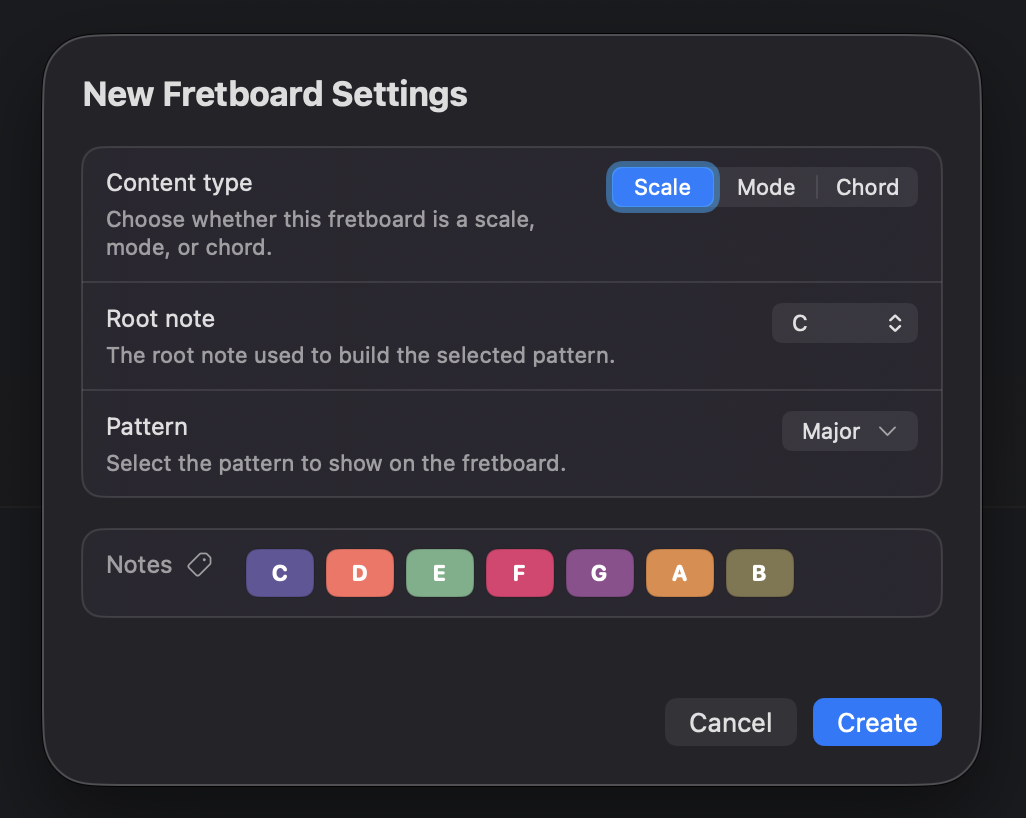
Add fretboard dialog -
Help
The Help button opens Frettler’s lightweight in-app help. The macOS menu bar “Help” → “Frettler Help” opens the content you are reading right now in your browser.
-
Application Settings
Opens Frettlers application settings, also accessible using [Command] [,] or from menu item "Frettler" → "Settings".