Some of Frettler's most useful features are not obvious and are not visible in its user interface.
They are features you are already used to from applications such as Pages and Numbers, and might not
expect to see in an app like Frettler, so it is worth calling them out and explaining them here.
The user interface of Frettler has been designed with a minimalist approach, with controls on screen having collaborating features carefully woven together, in the fretboard panels in particular. This was done to avoid cluttering the panels with too many buttons and controls, so some of the less frequently used features are not up front, but are instead behind right click context menus.
As you explore Frettler, try right clicking on buttons and areas such as the title clusters to find those additional options.
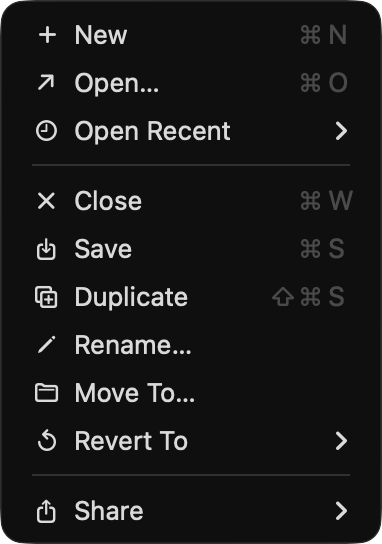
File Menu
Frettler is a document based app like Pages. Just as you create documents in Pages for specific
purposes, Frettler documents can each be tailored for a specific learning exercise or fretboard exploration.
One document might be for exploring blues scales, another for pentatonic explorations. The 'File' item in
Frettler's menu gives you access
to standard macOS file related operations.
From this menu you may create new Frettler documents, open documents etc as well as use the macOS document
revision system to revert to a previous version of your document.
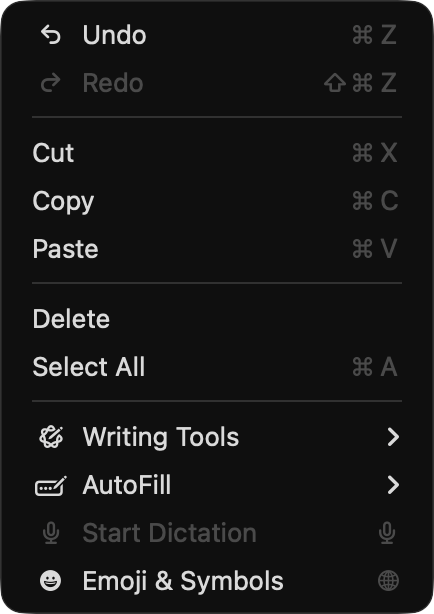
Edit Menu
When a fretboard panel title area is clicked, that fretboard becomes the current/focused fretboard.
Use keyboard [Up Arrow] and [Down Arrow] to move the current focus. That currently focused fretboard
will also be the target for the Cut/Copy/Delete options in the Edit menu.
The Select All menu command will only work for text in fretboard noteboards ie it will not select all
fretboards.
The combination of Edit menu commands Cut/Copy/Paste/Delete/Undo/Redo provides a powerful way to edit and
manage
fretboards within a document, and also across documents.
Undo/Redo works for all changes you can make to fretboard and chord organiser panels as well as to the panel order and population of the document. In fact the deletion of favourite voicings (see 'Document Window Overview') is the only change you can make that is not undoable. So don't be afraid to try out all of the on screen buttons and controls, as you can always revert your changes with Undo.
Drag And Drop
Fretboards, chord organisers (and the chord diagrams within them) can be moved within a document by dragging
them by their title area and dropping them
in the upper or lower half of another panel (which determines whether they will be moved to before or after
the fretboard they are dropped onto).
A blue line will appear confirming the drop location. The target
fretboard needs to be close when dragging like this, so with documents having many fretboards,
moving fretboards is easier by first collapsing panels, either individually using the collapse icon in their title area or by using the menubar item "Panel" → "Collapse All Panels".
Keyboard features
When you click a control within a panel (including the title as it is passive), it becomes the current panel and is highlighted to standout.
Both panel types can be collapsed and later expanded. The [Return] key toggles the collapsed state of the focused panel. Collapsing panels allows for quicker and easier navigation and re-ordering of panels, using either keyboard (see below) or drag and drop.
Move the focus to another panel using [Up Arrow] / [Down Arrow]. Jump to the first or last panel using [Command][Up Arrow] / [Command][Down Arrow].
Move the currently focused panel using [Option][Up Arrow] / [Option][Down Arrow] to move it one position.
Press keyboard [Delete] to delete the currently focused panel, or right click its title and use the delete panel option.
Cross Document Editing
Fretboards can also be dragged from one Frettler document into another. When they are, the original fretboard
remains
in the source document, and a copy is placed in the destination document, following the pattern described
above (upper/lower half
of a fretboard determining before/after). If the destination document does not have any fretboards yet, simply
drop into the 'Welcome to Frettler'
introductory text panel.
Copy/Paste between documents also works and is a useful way of replicating fretboards, even when the two
documents are for different
instruments/tunings - the fretboard added will automatically be adjusted to show the same scale/chord but in
the context of that document's
instrument/tuning.
Notepad text is copied across, as is the nature of the scale/chord/mode.
If the destination document's configuration (instrument/tuning) matches that of the source document, then
marked notes
will also be copied, else they will be cleared.
ie Frettler will retain what makes sense in the fretboard copy within the target document.
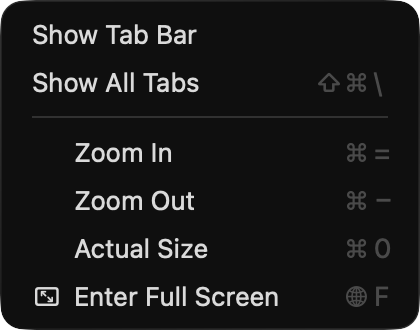
View Menu
The View menu item enables switching tabbed mode on/off. When tabbed mode is on, it is possible to open
multiple Frettler documents
within the same window, and switch between tabs using [Control][Tab]. Copy/Paste of fretboards works within tabbed
mode, just as it does
within separately windowed documents, as does drag and drop.