Fretboard panels overview
Frettler is designed as a macOS document-based application. Rather than showing a single fretboard that resets the next time the app is opened, Frettler lets you collect many fretboards within each document.
- Remember: all scales and chords shown by panels within the same document use that document’s current instrument, tuning, and handedness. You can create multiple documents, each for a different instrument or tuning, or create hundreds of documents all for the same instrument.
- New fretboards or chord organisers are added to the bottom of the document. You can reorder them by dragging and dropping a panel before or after another, or by using keys [Option] [Up Arrow] / [Down Arrow].
- Zoom panels within a document using the standard macOS ⌘+ and ⌘- shortcuts, pinch to zoom on the trackpad, menu options under “View”, or the zoom controls at the top of each document.
- If a fretboard extends off-screen horizontally, scroll it left and right with your trackpad or mouse to bring hidden sections into view.
- Clicking the title of a panel makes it the currently focused panel for navigation. The Up and Down arrow keys move the focus while bringing the newly focused panel into view.
-
Fretboard configuration
To edit the type, root, or pattern of a fretboard, click the configuration icon to the right of the panel title to open its edit sheet.
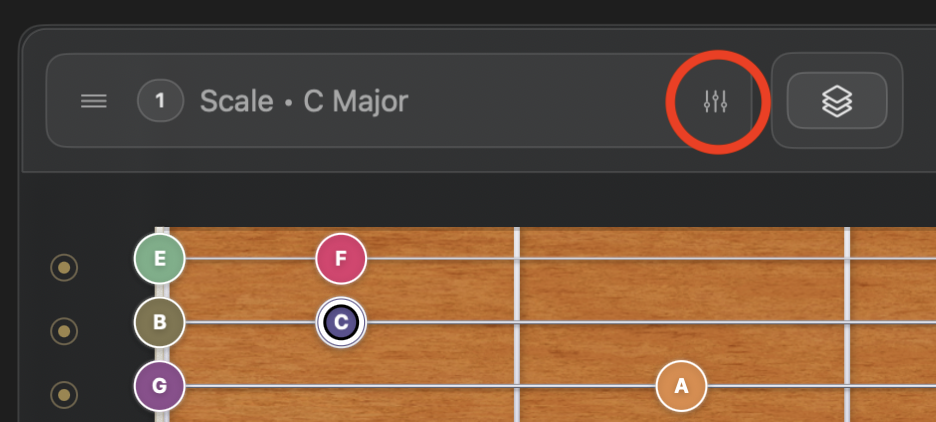
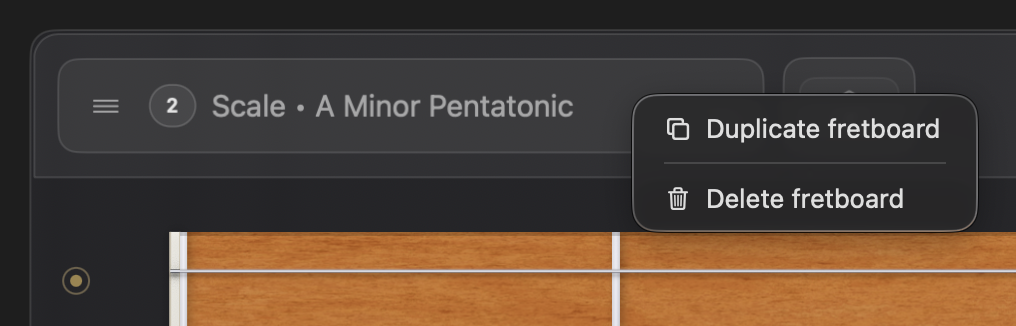
Fretboard controls (top left) Right-clicking the fretboard title reveals a context menu with two extra options. The first duplicates the current fretboard in its entirety, including its notepad and marking groups. The second deletes the fretboard, which can also be done by clicking the title to bring focus to it and pressing the Delete key.
Fretboard title context menu -
Scale Harmony sheet
For fretboards with a content type of Scale or Mode that supports diatonic chord derivation—that is, heptatonic patterns—the button to the right of the configuration icon opens a sheet showing the diatonic chords in that key. This single sheet is a nexus for useful scale-related actions, as they all pivot on the chords derived from a scale.
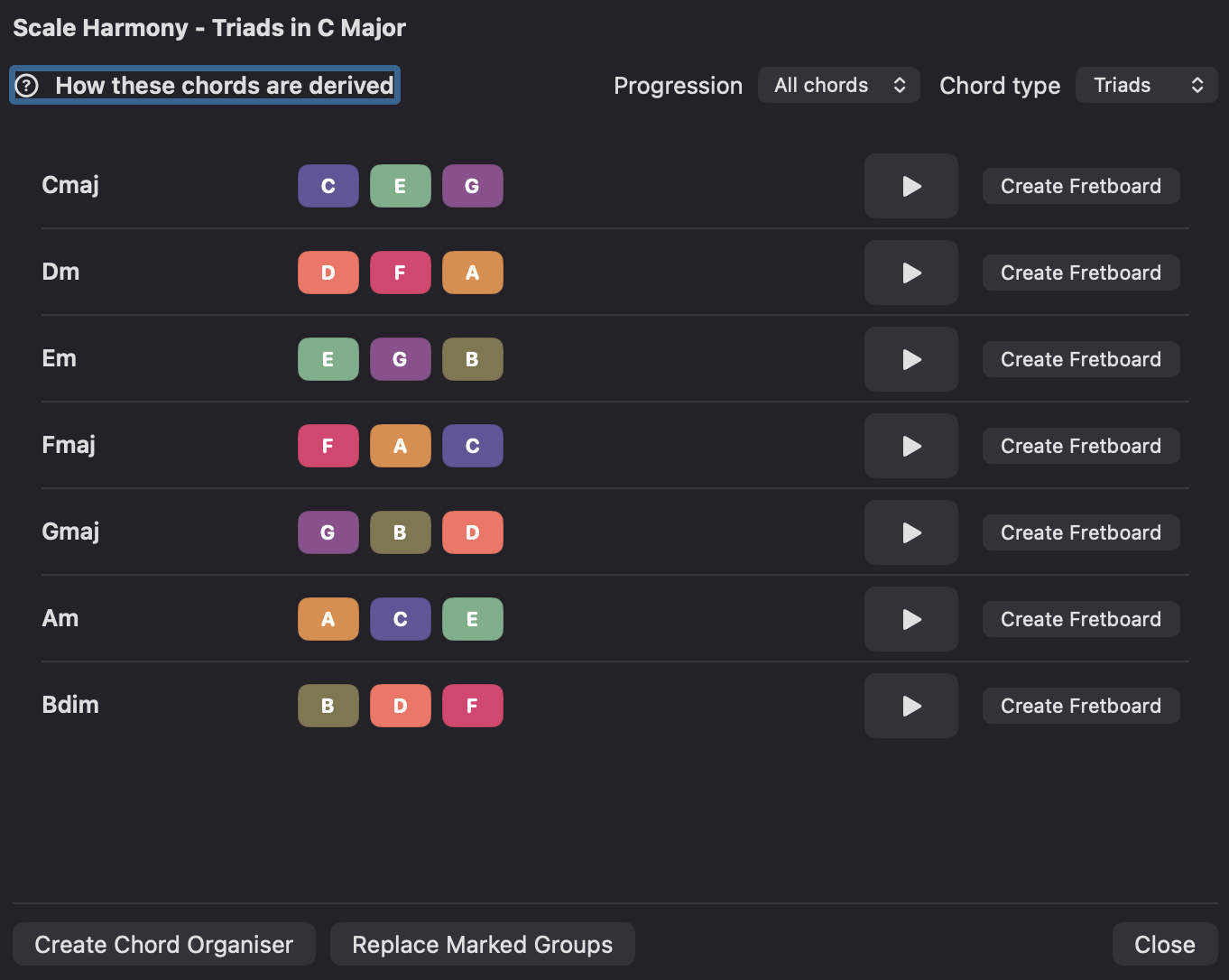
Scale Harmony sheet By default, the triad notes are shown for each diatonic chord. Each chord can be previewed using the play button to hear it strummed. The voicing used is the first resolved voicing that would be shown for that chord in a chord organiser.
Switch the derived chords to tetrads using the “Chord type” control at the top right.
All chords derived from the scale are shown by default, but the “Progression” picker at the top allows you to filter and rearrange the chords using a selection of progressions:
- All chords
- 3-chord (I-IV-V)
- Pop (I-V-vi-IV)
- Jazz cadence (ii-V-I)
- Turnaround (I-vi-ii-V)
- Jazz turnaround (vi-ii-V-I)
- Circle sequence (iii-vi-ii-V)
- Pop variant (vi-IV-I-V)
- 50s progression (I-vi-IV-V)
- Canon (I-V-vi-iii-IV-I-IV-V)
- Minor cadence (I-IV-V)
- Minor pop (I-vi-iii-vii°)
This sheet has a help feature which, when selected, slides out a side panel explaining how each chord in the list has been derived from its parent scale and key.
A fretboard panel can be created from each of the chords individually.
The “Create Chord Organiser” button creates a new panel below the parent fretboard panel, containing a chord card for each of the chords shown, in the order in which they appear. These may be all of the default diatonic chords derived from the scale, or only the chords from a selected progression.
Each fretboard panel has up to nine marking groups, described below, which can be used to focus on only the notes that you have marked across the fretboard. “Replace Marked Groups” replaces any markings you have made in those groups with markings for the notes within these chords, and renames each marking group to match its chord.
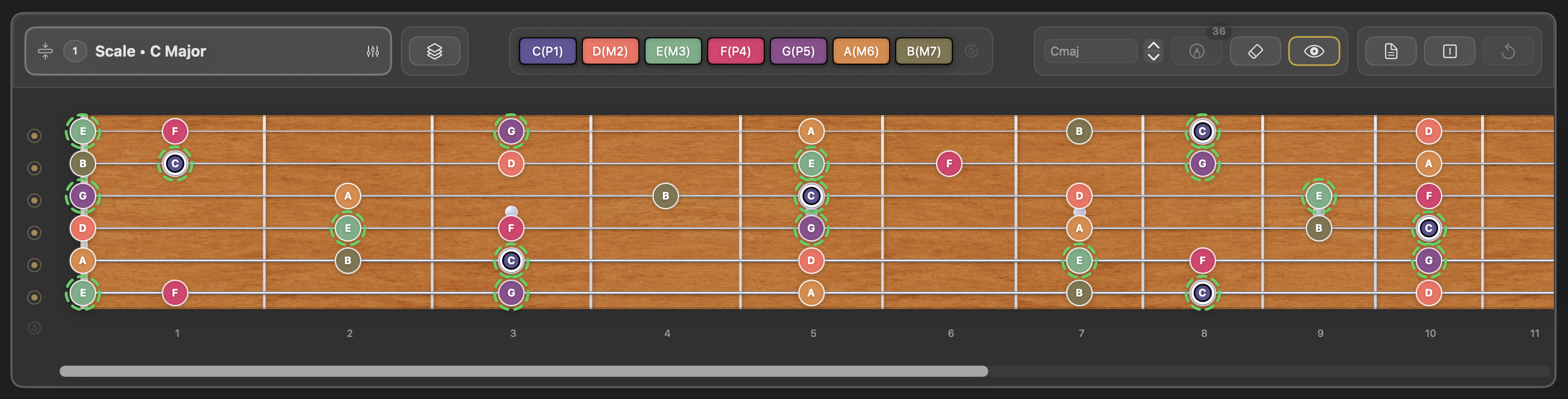
Scale of C Major, after Replace Marked Groups usage, showing the first group, Cmaj chord
When the marking groups have been replaced by the Scale Harmony sheet, the labels of the marking groups are locked, as is the marking button. This is to preserve each groups integrity, and prevent the markings of each from being changed and therefore becoming incorrect. Each of the groups marked in this way can be erased individually or all together, after which the marking group(s) revert to normal behaviour. When a Scale Harmony marked group is set to View Marks only, the chords note chips will change position as a visual clue that what you are seeing is not a regular marking group, but a chord derived group from Scale Harmony.
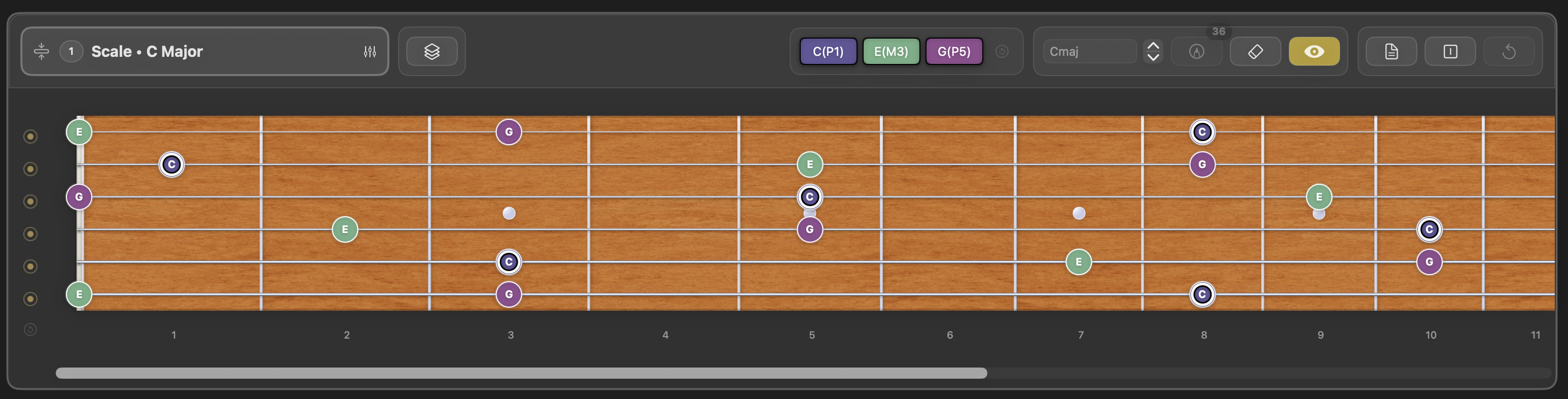
Scale of C Major, after Replace Marked Groups usage, showing the first group, Cmaj chord, in View Marked Notes mode -
Fretboard string controls
To the left of each fretboard, regardless of its handedness, are small toggle buttons aligned with the strings. These can be used to hide all of the notes on individual instrument strings, allowing you to focus your learning on one or two strings without being distracted by notes on the other strings.
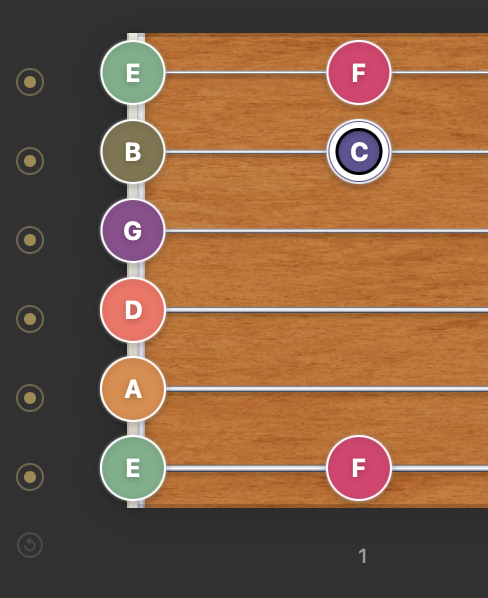
Fretboard string controls, defaulted Once one or more strings have been hidden, a reset button below the string controls is enabled. This resets all strings in the current fretboard to be visible again. Alternatively, you can toggle them back on individually.
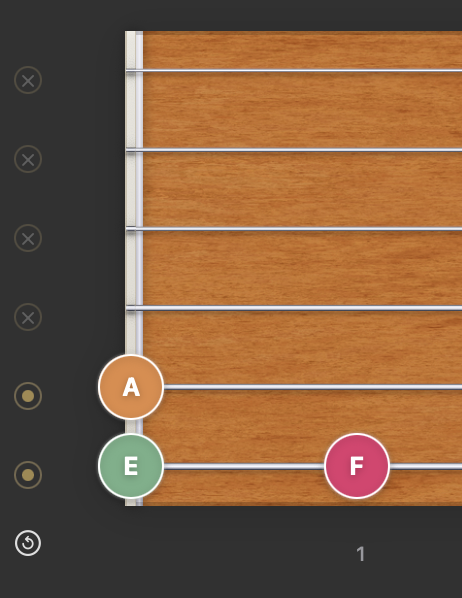
Fretboard string controls, after selections Paired with selectively hiding notes using the note or interval chips, described in the following section, and using the marking groups described later, these controls enable you to create customised views of the notes across a fretboard.
-
Fretboard note/interval chips
The notes in each fretboard’s scale, mode, or chord are shown as chips at the top of the panel:
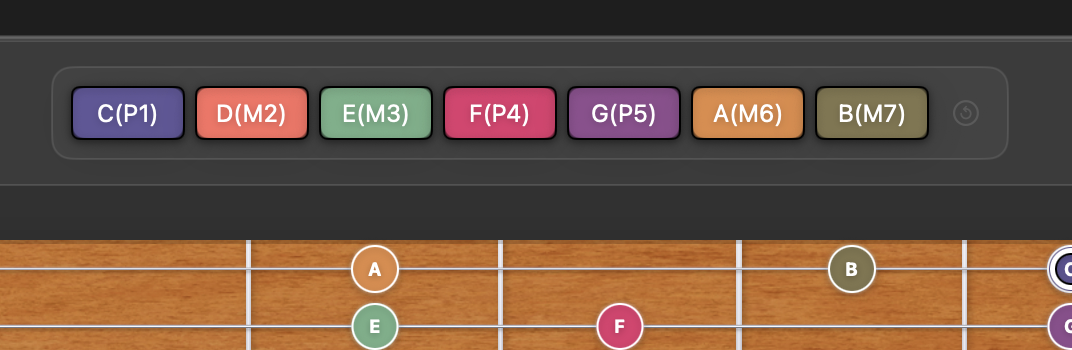
Fretboard note and interval chips Each chip shows a note and its interval within the pattern, using the following notations:
- P1 — Perfect unison (root)
- m2 — Minor second
- M2 — Major second
- m3 — Minor third
- M3 — Major third
- P4 — Perfect fourth
- d5 — Diminished fifth
- A4 — Augmented fourth
- P5 — Perfect fifth
- A5 — Augmented fifth
- m6 — Minor sixth
- M6 — Major sixth
- d7 — Diminished seventh
- m7 — Minor seventh
- M7 — Major seventh
- P8 — Perfect octave
- m9 — Minor ninth
- M9 — Major ninth
- m10 — Minor tenth
- M10 — Major tenth
- P11 — Perfect eleventh
- A11 — Augmented eleventh
- P12 — Perfect twelfth
- m13 — Minor thirteenth
- M13 — Major thirteenth
Hovering over a chip highlights that note or interval across the fretboard.
Clicking a chip toggles that note or interval between visible and hidden across the fretboard:
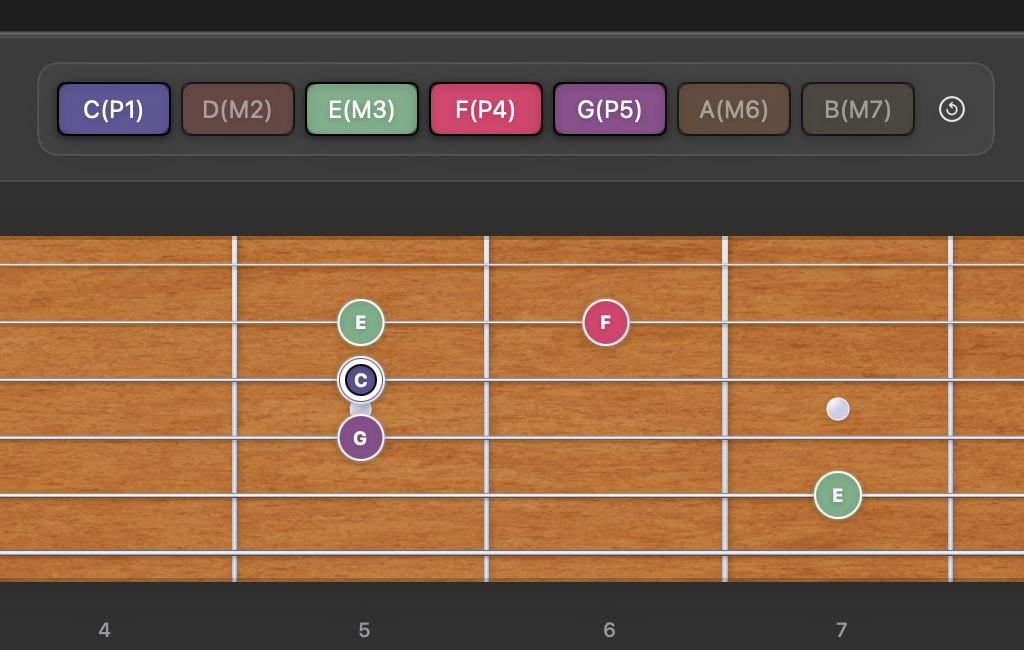
Example of hidden notes Note: all notes can be re-enabled using the reset icon to the right of the chips.
Note: hidden notes are not played when using “Pattern play”.
-
Fretboard controls – marking
To the right of the chips is a bank of additional fretboard controls. The first group of three buttons relates to marking notes.
The notes can be manually marked individually, be marked due to their visibility (see note/interval chips and string controls) or be marked by the Scale Harmony sheet. There is a lot of flexibility and functionality in the marking system, and the number of controls has been designed to be minimal, rather than have a multitude of similar but confusing controls. But it does mean that some experimentation is required in order to work out its subtleties and how it might work best for your usage.
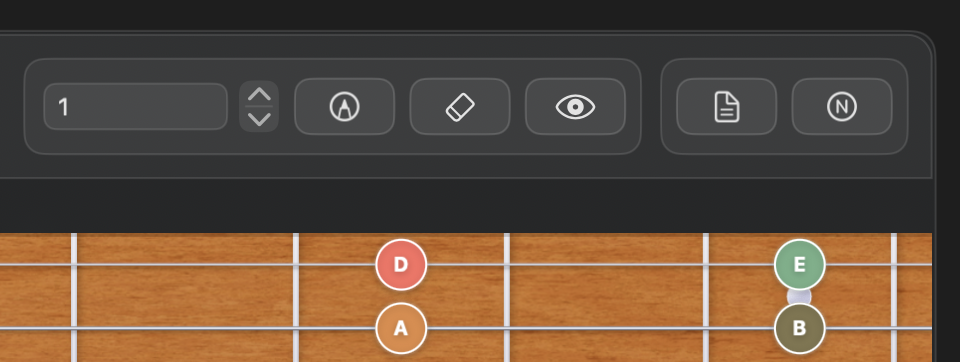
Fretboard controls (top right) You can mark individual notes on a fretboard. Marked notes are highlighted with a green dashed circle.
Frettler supports up to nine marking groups and defaults to using group one, indicated to the left of the marking controls. The current group can be changed using the up and down controls. Clicking the group’s label opens a pop-up sheet that allows the label to be edited.
To enable marking, click the first button, showing the marker pen. When marking is on, the button turns yellow. Click any note to toggle its mark. The marker button also shows how many notes are marked in the current group, including notes that may be off-screen.
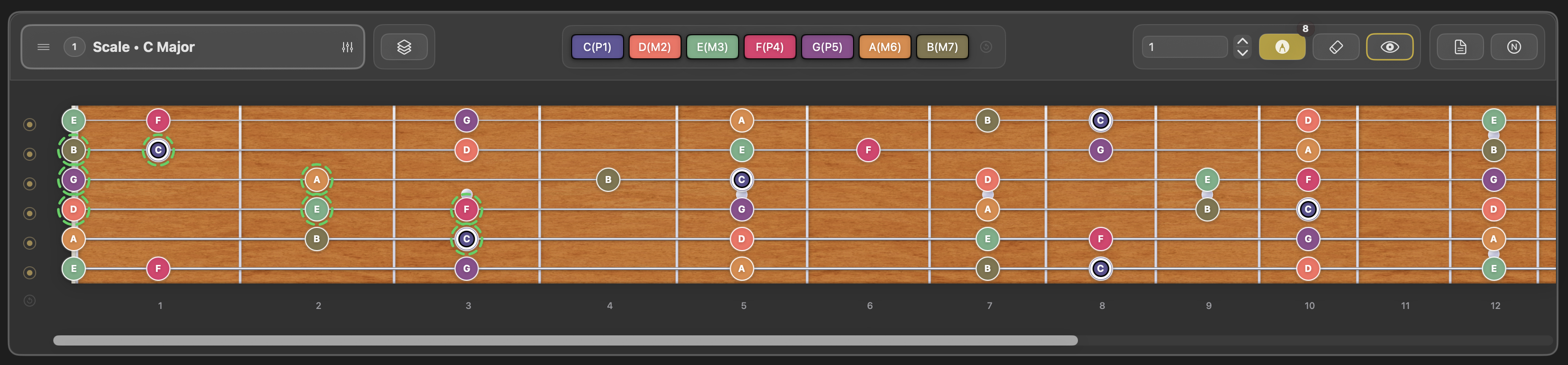
Fretboard in marking mode While marking is enabled, clicking notes only marks or unmarks them. The usual play interactions are paused until you turn marking off. Click the marker pen again to return to normal fretboard mode. Your chosen document play mode then applies as usual, and any marked notes remain visible alongside unmarked notes.
To mark every occurrence of one or more notes across the fretboard, use a combination of hiding notes with the note chips at the top of the fretboard and hiding entire strings with the left-hand string controls. Then right-click the marker pen button and select either “Mark all shown notes” or “Unmark all shown notes”.
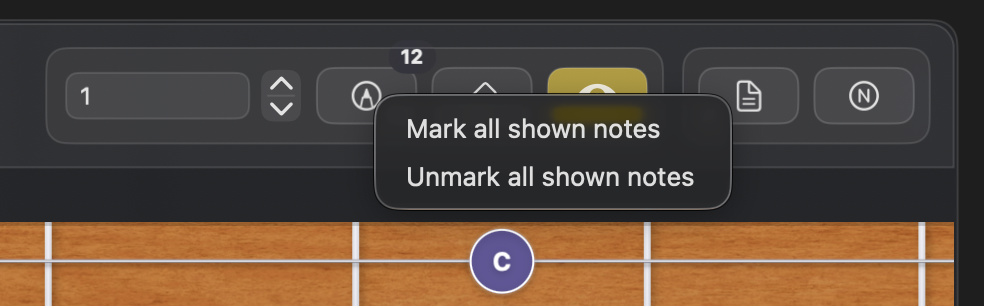
Fretboard marking context menu The second button erases all marks within the current marking group. The erasure can be undone using Undo (⌘Z).
Right-clicking the erase button reveals a context menu offering two options. The first erases the current group’s markings, and the second erases the markings from all nine groups.
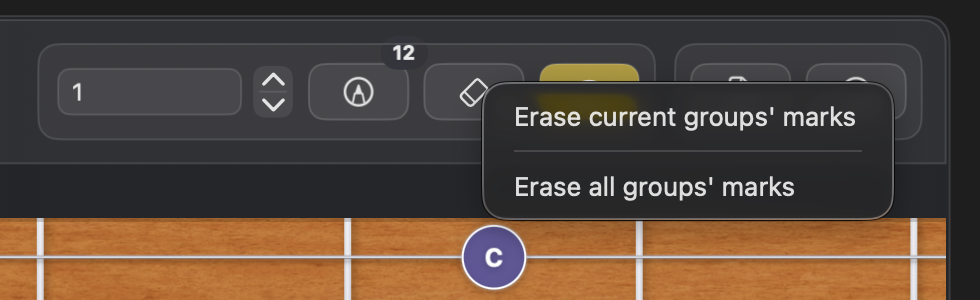
Fretboard marking erasure context menu The third button is “View marked notes”. This toggles the fretboard’s display between marked notes only and all notes. This allows you to focus on a particular section or sequence of notes on the fretboard.
When “View marked notes” is enabled, the button is coloured yellow. When it is not enabled but the current group contains marks, it has a yellow outline to remind you that the group has marks which can be viewed in isolation.
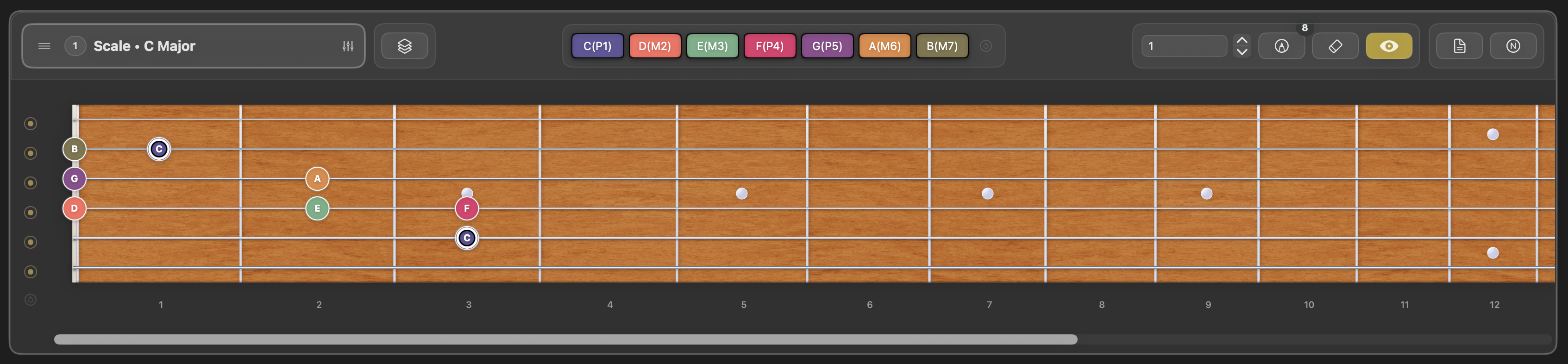
Fretboard showing only marked notes -
Fretboard controls – notepad
The fourth button is the notepad control. A new fretboard starts with an empty notepad, so the button appears plain. Clicking it toggles the notepad’s visibility. Once the notepad contains text, the button turns yellow to remind you that notes are present. Notepads are saved with their fretboards in the Frettler document.
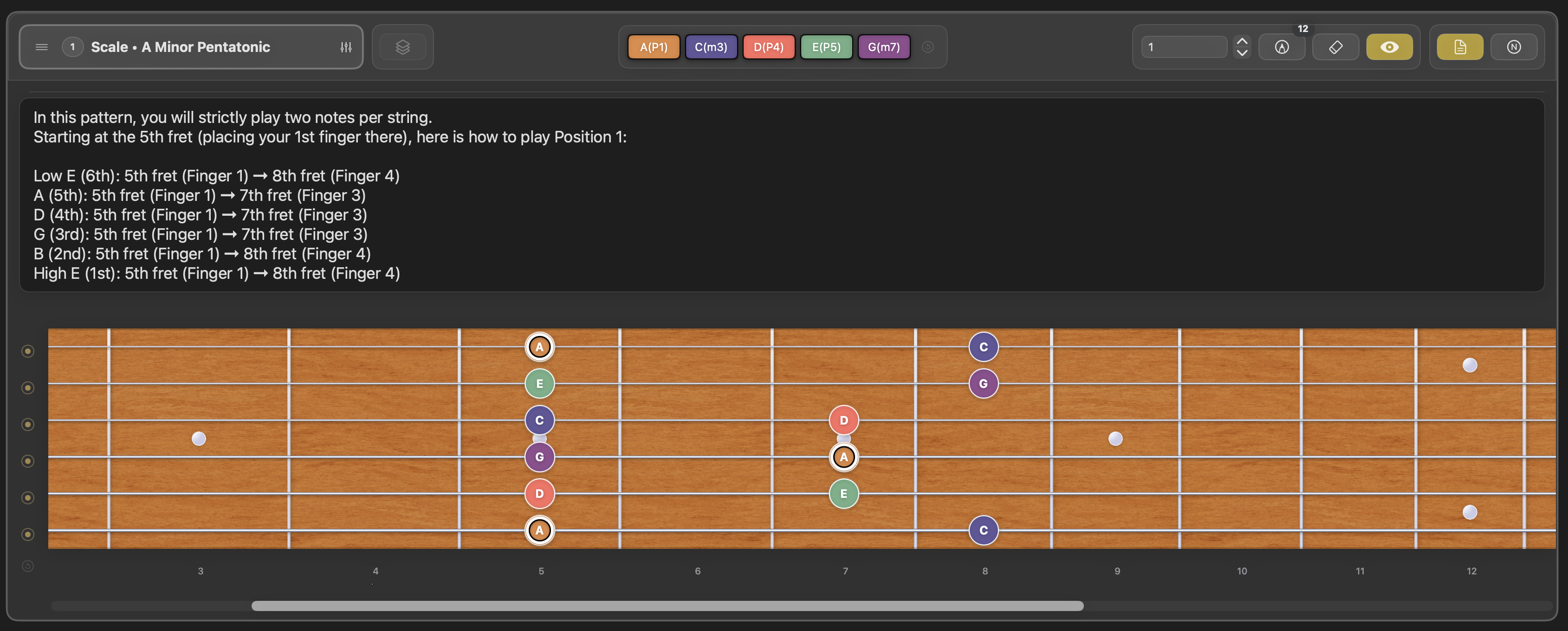
Fretboard notepad -
Fretboard controls – labelling mode
The fifth button toggles between viewing notes and viewing intervals. By default, fretboards show note labels, and the tooltip shows the corresponding interval. When you switch to interval labels, the tooltip text changes accordingly.
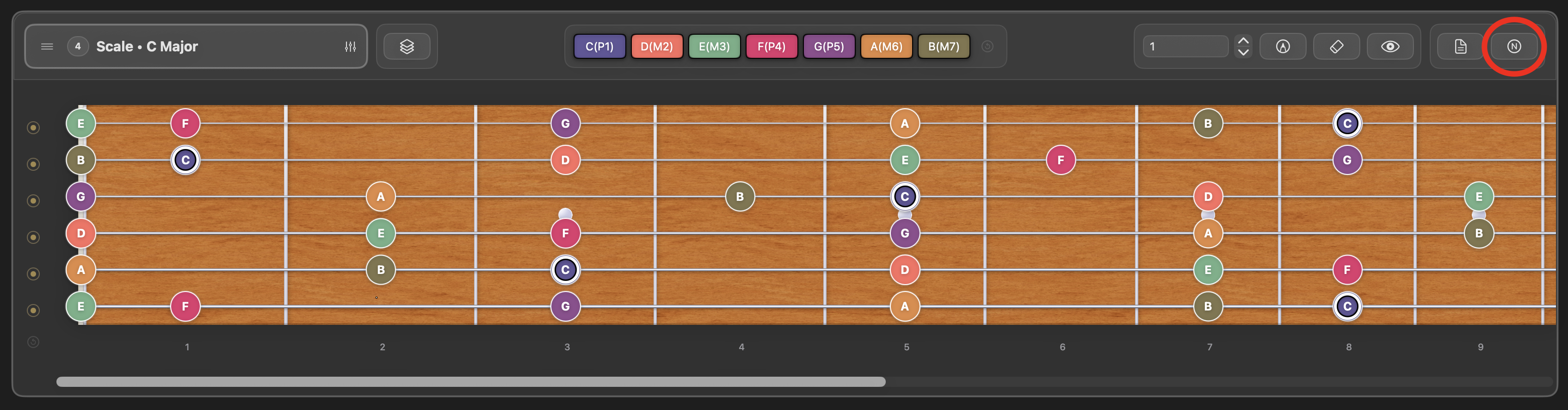
Fretboard showing note labels 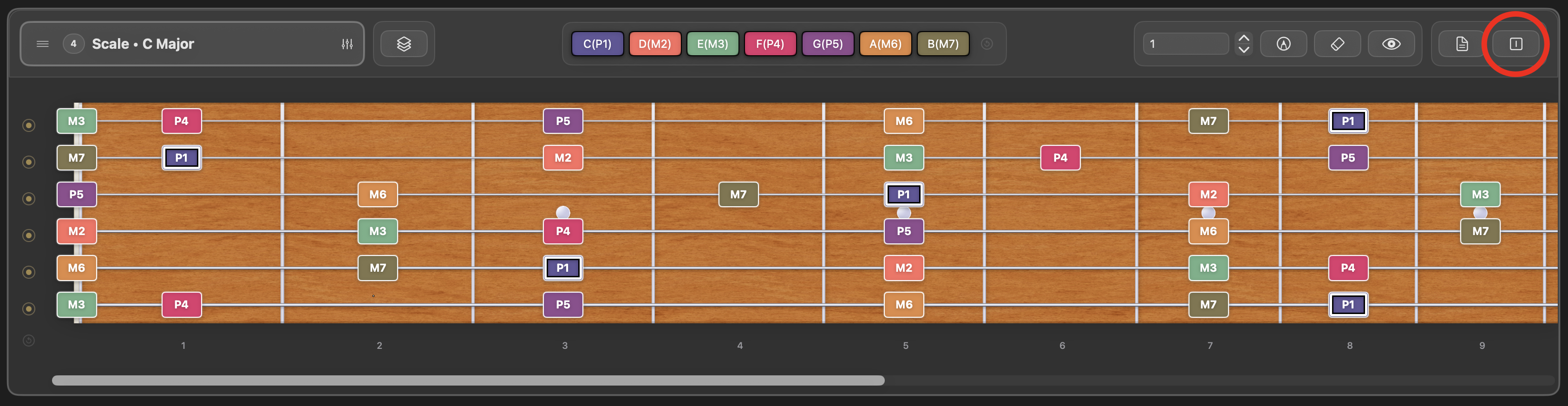
Fretboard showing interval labels