Frettler Settings
While each fretboard has controls within it which determine the characteristics of just that fretboard, and each document has document wide configuration (instrument, tuning and handedness) which apply to all of the fretboards within it, Frettler has application wide settings, found in menubar item “Frettler” -> “Settings”.
Settings are divided into tabs:
- General - Miscellaneous settings
- Documents - Settings which affect document level functionality
- Instruments - Settings for Frettlers supported instruments
- Fretboards - Settings which affect fretboard level functionality
- Support - Help related
-
General
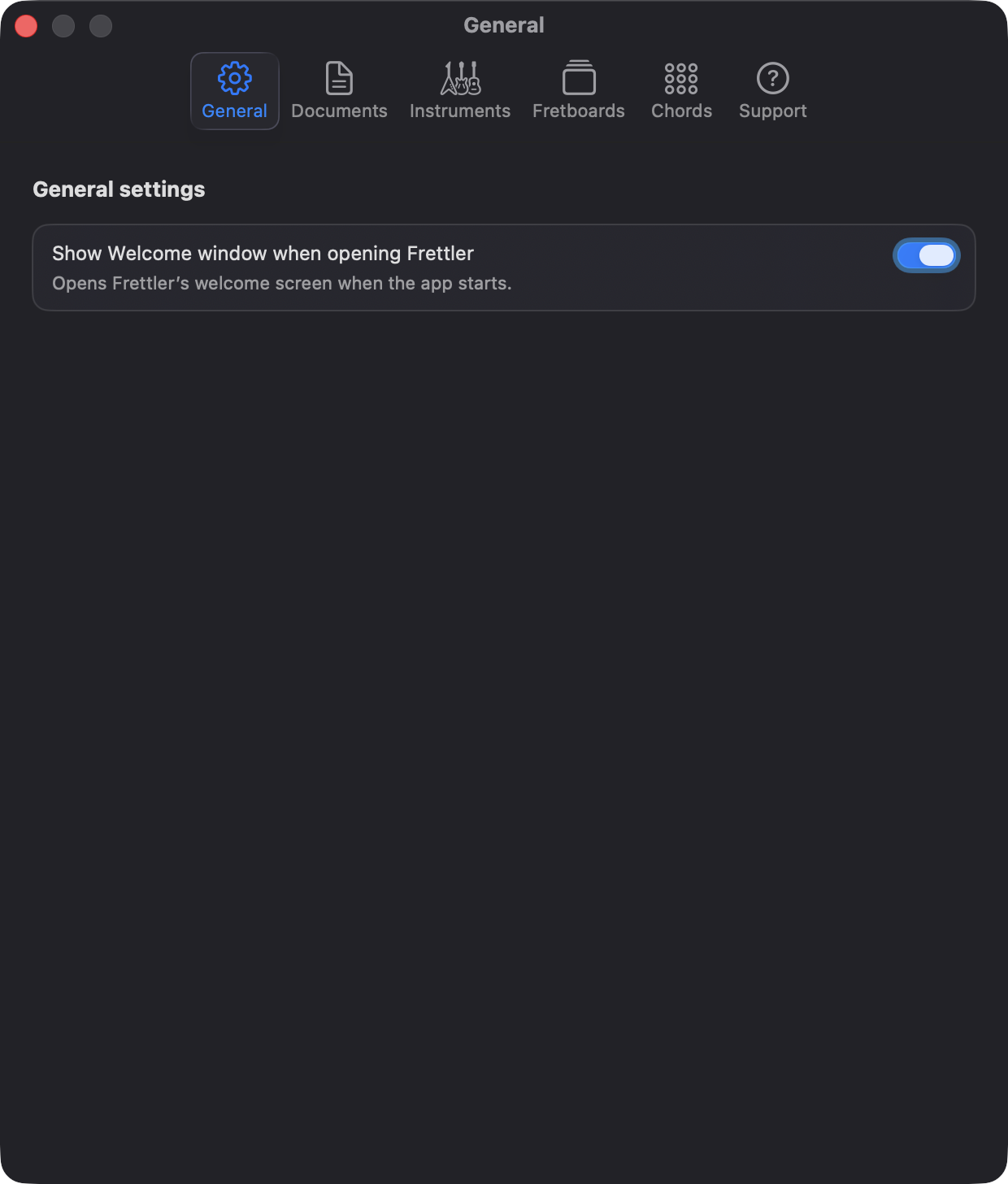
On first installation, Frettler presents an introductory welcome page, offering to create a new document, open an existing one, or open the inbuilt example document. That welcome page can be set to not re-appear on future application launch, but should you wish to have it re-appear, the option is here.
Frettler Settings - General -
Documents
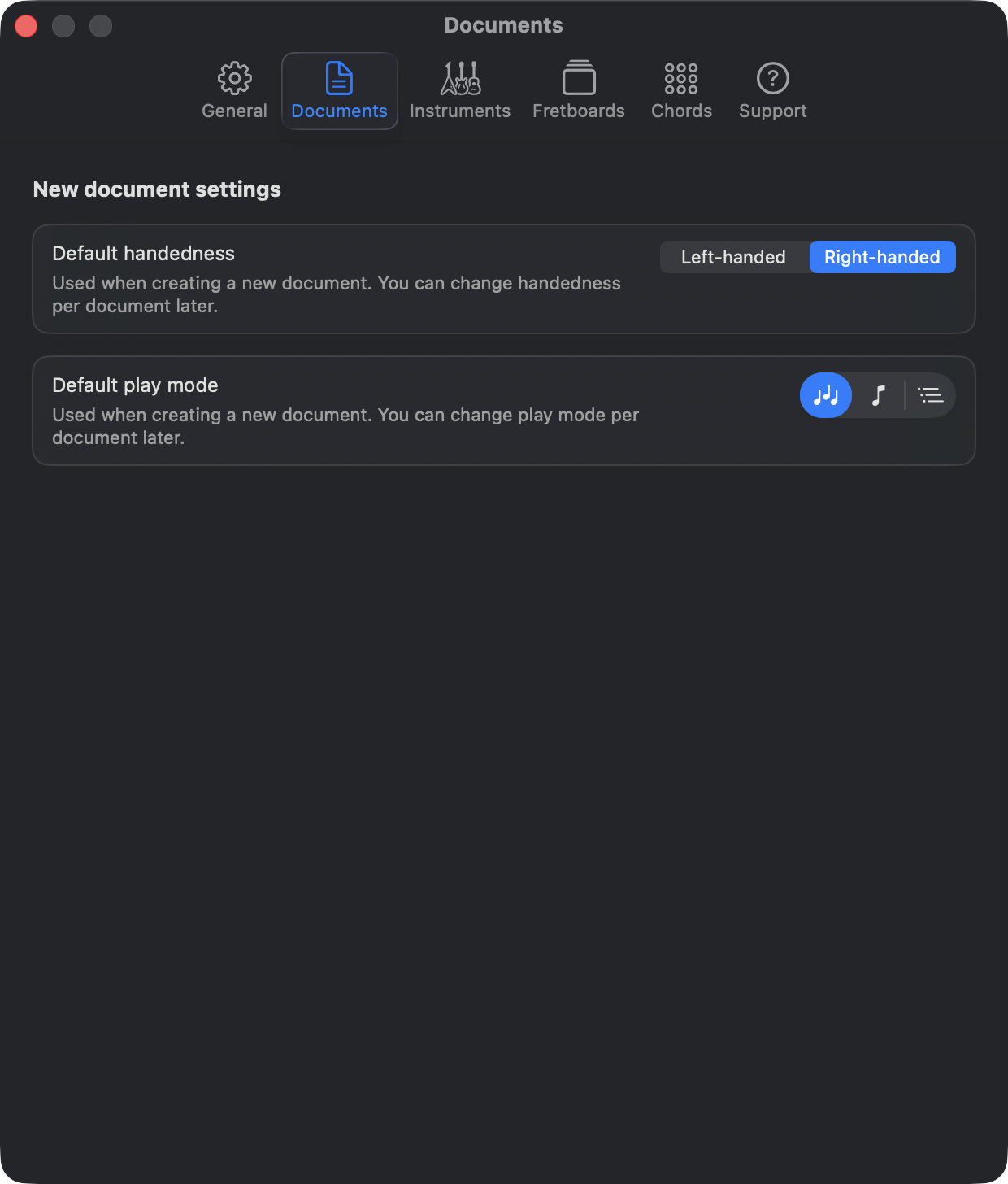
When creating a new document, you are prompted for instrument, tuning and handedness , with the latter defaulting to right-handed, favouring the majority of players. If you are in the minority, set the default to be left-handed here.
The play mode when clicking fretboard notes has three settings, sustained, single or pattern run. The default mode for new documents can be set in this tab. The play mode can be changed within the document at any time once it has at least one fretboard.
Frettler Settings - Documents -
Instruments
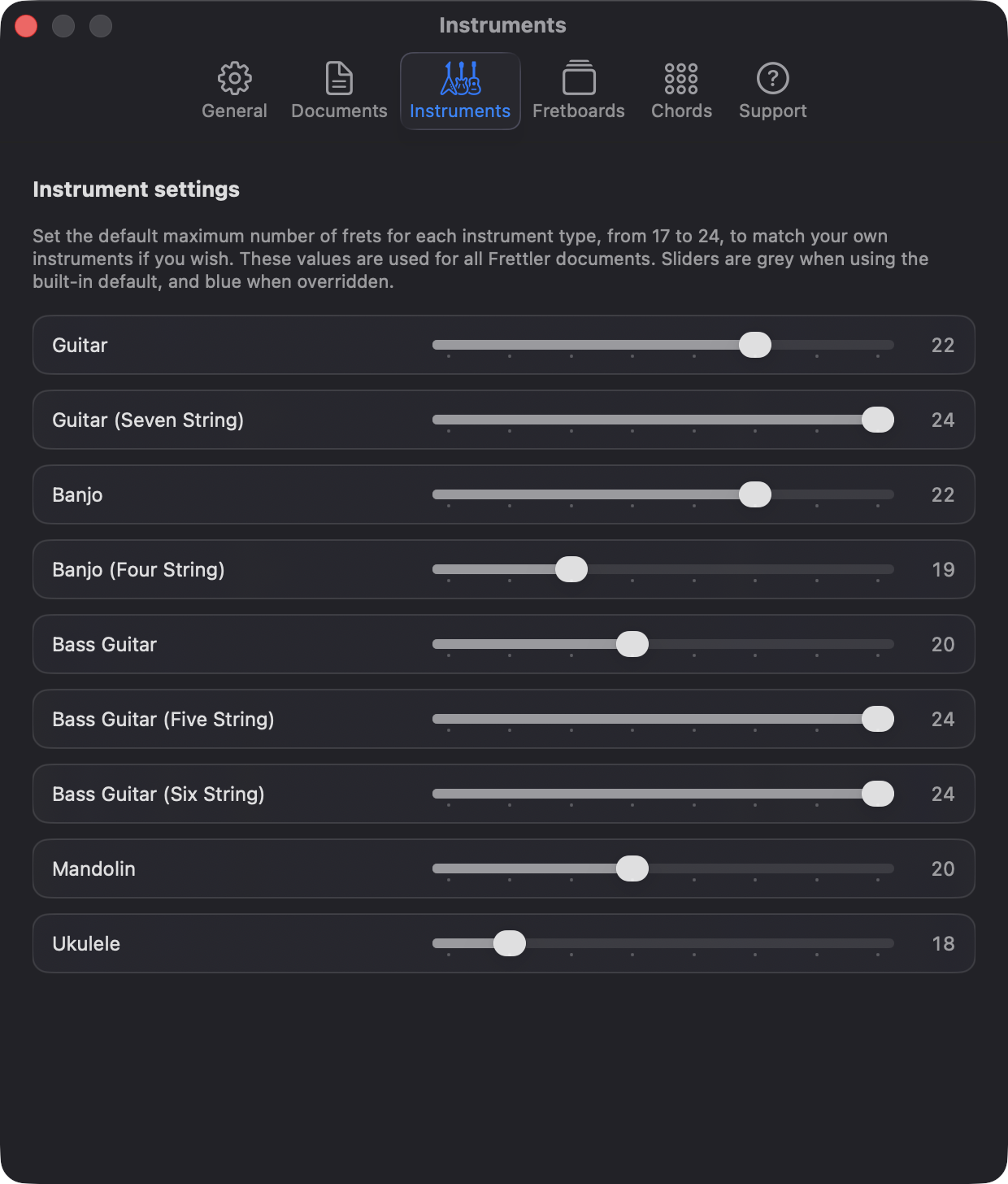
This section gives you control over the default maximum number of frets Frettler uses for each instrument type. That means fretboards can better reflect the instruments you actually play, whether your guitar stops at 22 frets, your mandolin has a shorter fingerboard, or your ukulele has a more compact range.
Use the sliders to choose the fret limit that best matches each of your own instruments. Frettler will then use those values whenever it display a fretboard in a document of that instrument type. Sliders shown in grey indicate instruments using Frettler’s built-in defaults, while blue sliders indicate an instrument is using a default override.
Frettler Settings - Instruments -
Fretboards
Highlight notes on hover - in fretboard panels, the default behaviour is to highlight the notes on the fretboard with a transient blue halo, when you hover over that note's chip in the fretboard header bar, or hover over a string control on the left of the fretboard (in which case all notes on that string are haloed). This feature is to help you focus on notes or strings, allowing you to see the wood for the trees, but if you instead find it distracting, you can switch it off here.
Background - choose here which wood graphic you would like for all fretboards in all documents. The choice you make is seen immediately in any open documents, so you can see the effect straight away if you have open documents, but a preview is also shown in the dialog.
Note colours - depending on the background you choose, you may like to choose darker/lighter or subdued/vibrant colours for the notes and intervals shown in fretboards. Again, your selection is instantly applied to open documents and a preview is provided in the settings dialog.
The two Mono themes provide monochrome colouring for those who prefer uniform note colouring.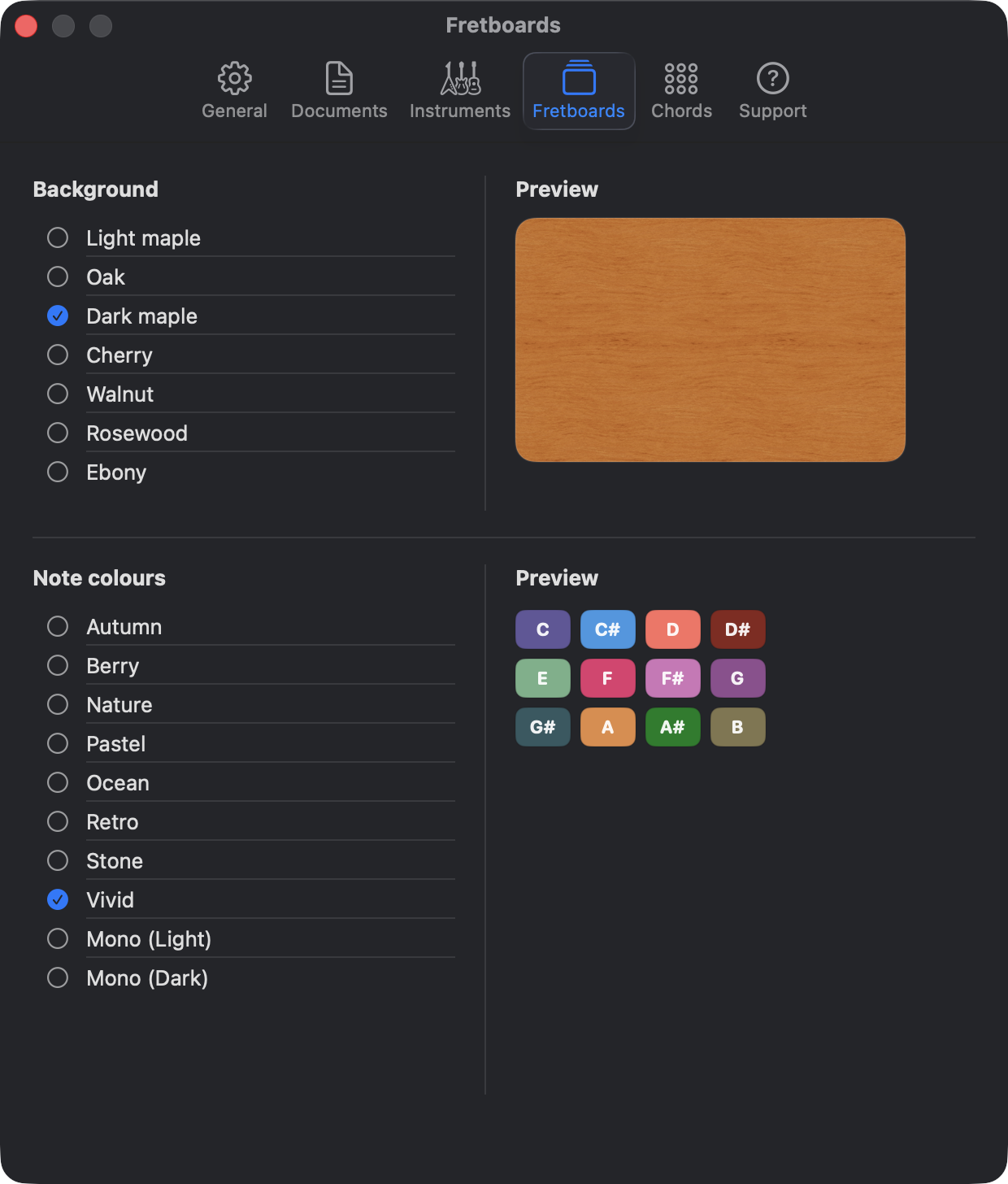
Frettler Settings - Fretboards -
Chords
Diagram appearance - by default in dark mode, the background is dark, in light mode it is light. Here you have the choice of that system default, or you can choose light or dark regadless of system light/dark mode.
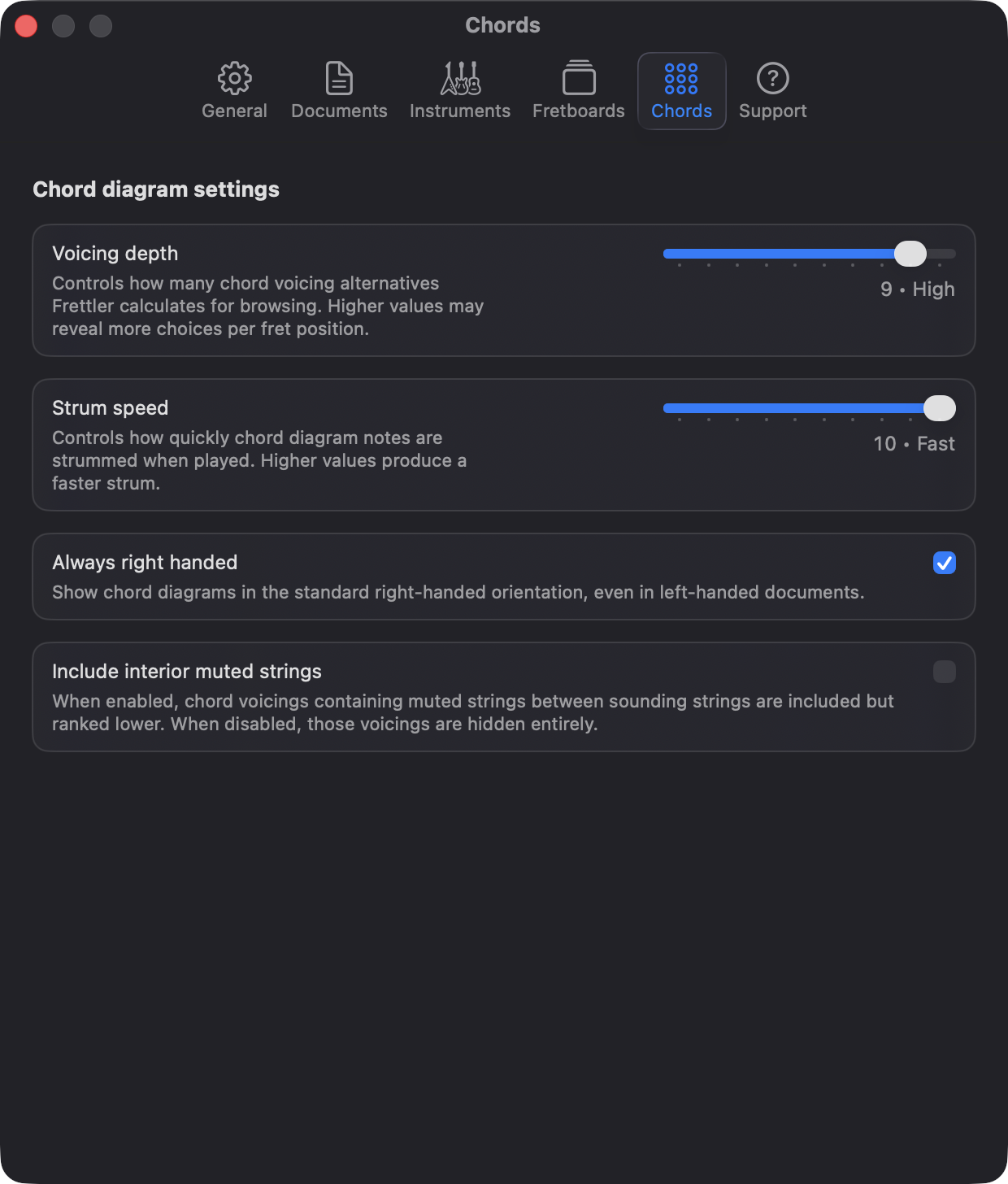
Strum speed - when you press the space key with a chord voicing diagram selected, or if you click it, Frettler will play that voicing, string by string as a strum. The speed of that strum is set here.
Always right handed - the chord voicing diagrams will by default display their strings using the orientation of the document instruments handedness. So if the instrument is right handed, string six will be on the far left, but if left handed, it will be on the right. If as a left handed player you prefer to see these chord diagrams in a right handed orientation, set the option here.
Include muted interior strings - Frettler will filter out chord voicings having interior muted strings, regarding them as not ideal. Allowing them with this setting will include them in the list of candidate voicings, but they will always be ranked last and may still not make the cut.
Include inversions - chord voicings that do not lead from the bass with the root note (aka inversions) are shown by default, but if you wish to only see voicings leading with the root in the bass, switch off inversions here.
Include voicings with omitted notes - by default, when Frettler calculates and shows voicings for a chord, depending on the chord type, it will allow certain intervals to be omitted from voicings. Which intervals can be omitted vary, because certain chords can still be 'carried' without those intervals, makes the fingering playable, and omitting them allows for more voicing permutations to be shown. Switch off this feature if you only want to see voicings which include all of a chords intervals, but be warned, there are some chord types which when fully realised, are unplayable due to the number of frettings required, and Frettler may not be able to show any voicings for at all.
Frettler Settings - Chords -
Keyboard
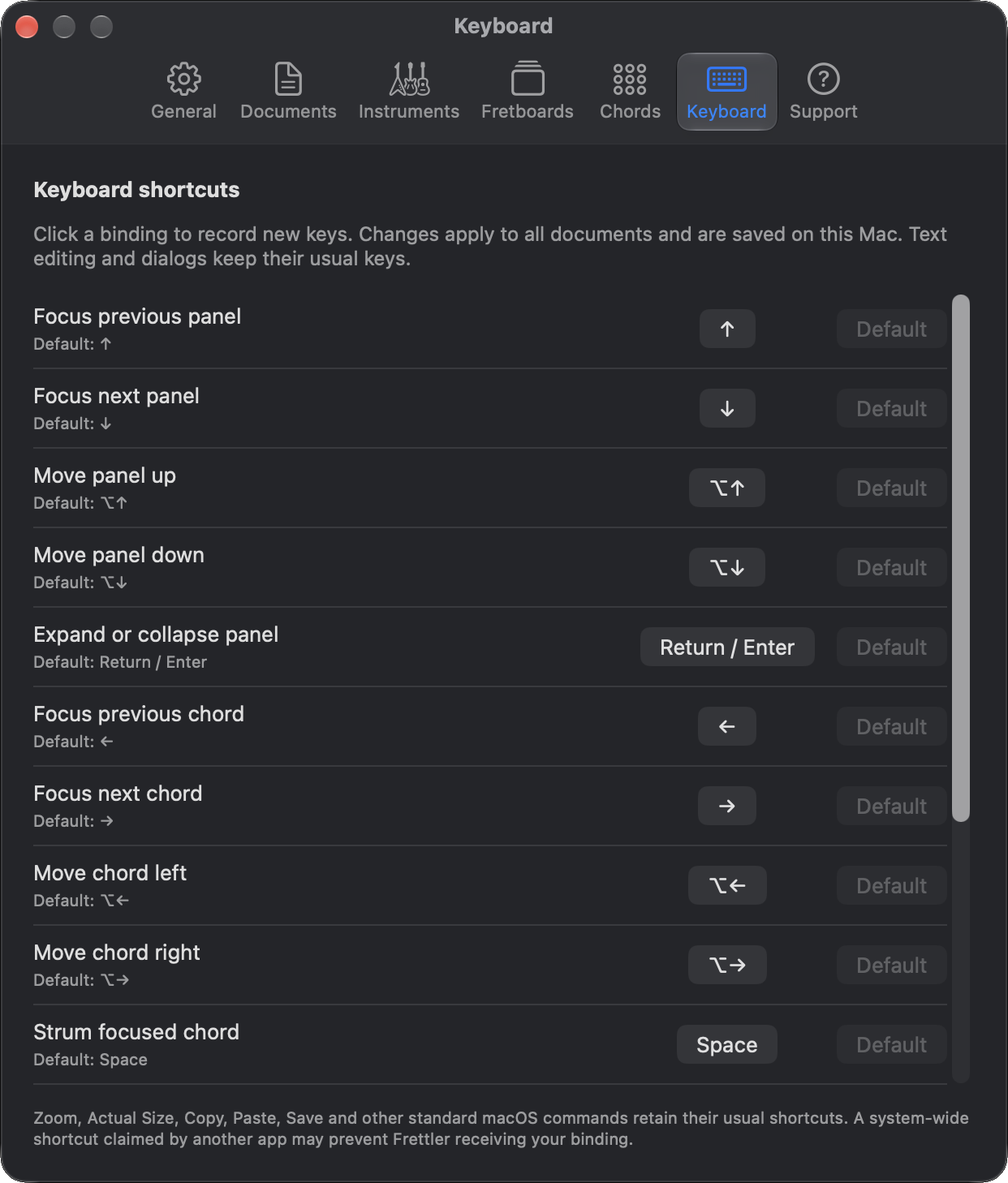
- Focus previous panel: Move focus to the preceding panel and bring its header into view. Collapsed panels are included.
- Focus next panel: Move focus to the following panel and bring its header into view. This changes focus without rearranging panels.
- Move panel up: Move the focused panel one position earlier in the document.
- Move panel down: Move the focused panel one position later in the document.
- Expand or collapse panel Toggle the focused panel between its expanded and collapsed states.
- Focus previous chord: Move focus to the previous chord in the currently expanded organiser. If no chord is focused, select its last chord. This does not rearrange chords.
- Focus next chord: Move focus to the next chord in the current expanded organiser. If no chord is focused, select its first chord.
- Move chord left: Move the focused chord one position earlier within its organiser, keeping it focused.
- Move chord right: Move the focused chord one position later within its organiser.
- Strum focused chord: Strum the currently focused chord diagram using its displayed voicing and the strum speed chosen in the Chords tab.
- Strum focused chord in reverse: Strum the focused chord in the opposite string order.
- Clear chord focus: Clear the focused chord and return focus to its organiser panel.
- Delete focused chord or panel: Delete the focused chord when a chord is selected; otherwise delete the focused panel. Use Undo to restore it. While editing text, [**Delete**] retains its normal text-editing action.
- Focus first panel: Focus the first panel and bring its header into view. Any chord focus is cleared; collapsed panels remain collapsed.
- Focus last panel: Focus the last panel and bring its header into view. Any chord focus is cleared; collapsed panels remain collapsed.
Each row shows its current binding and its default. Click the current binding, then press the key combination you want to use. Modifier keys such as [Option] or [Command] are recorded together with the main key. Press [Escape], or click 'Cancel', to abandon recording.
Click 'Default' to restore that action’s original binding. This button is unavailable when the action already uses its default. If another action now occupies that binding, change the other action first. Frettler reports conflicts without replacing either assignment.
Changes take effect across open documents and are saved on this Mac. Text editing and dialogs retain their normal keyboard behaviour.
A system-wide shortcut claimed by macOS or another application may prevent Frettler receiving your chosen keys. If a binding appears correct but does nothing, check for such a conflict or record a different combination.
Frettler Settings - Keyboard
Support
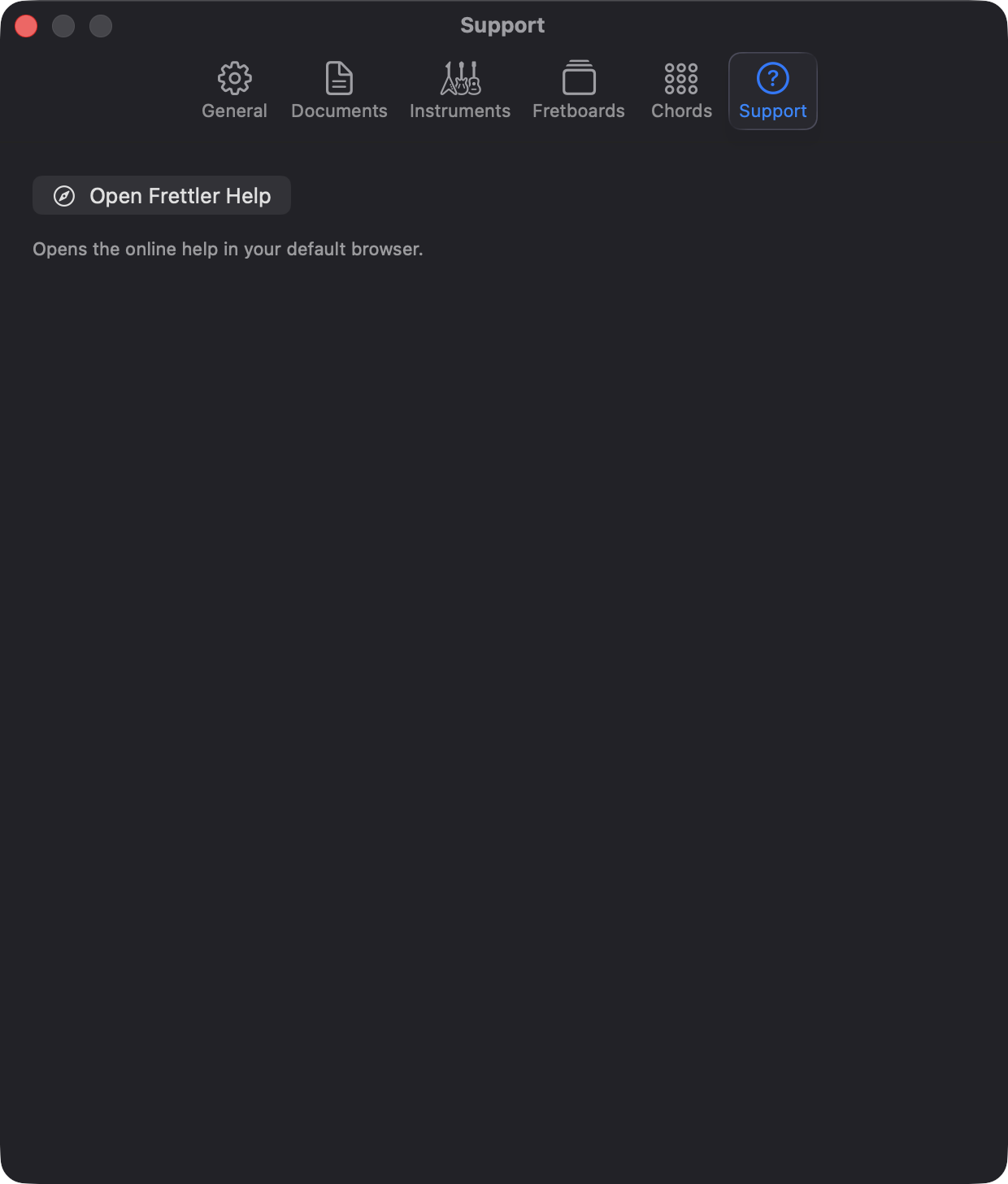
A link to this website is provided within this tab.