Getting started
When you create a new document in Frettler, you’ll be asked to select an instrument type, its tuning, and whether you are right- or left-handed.
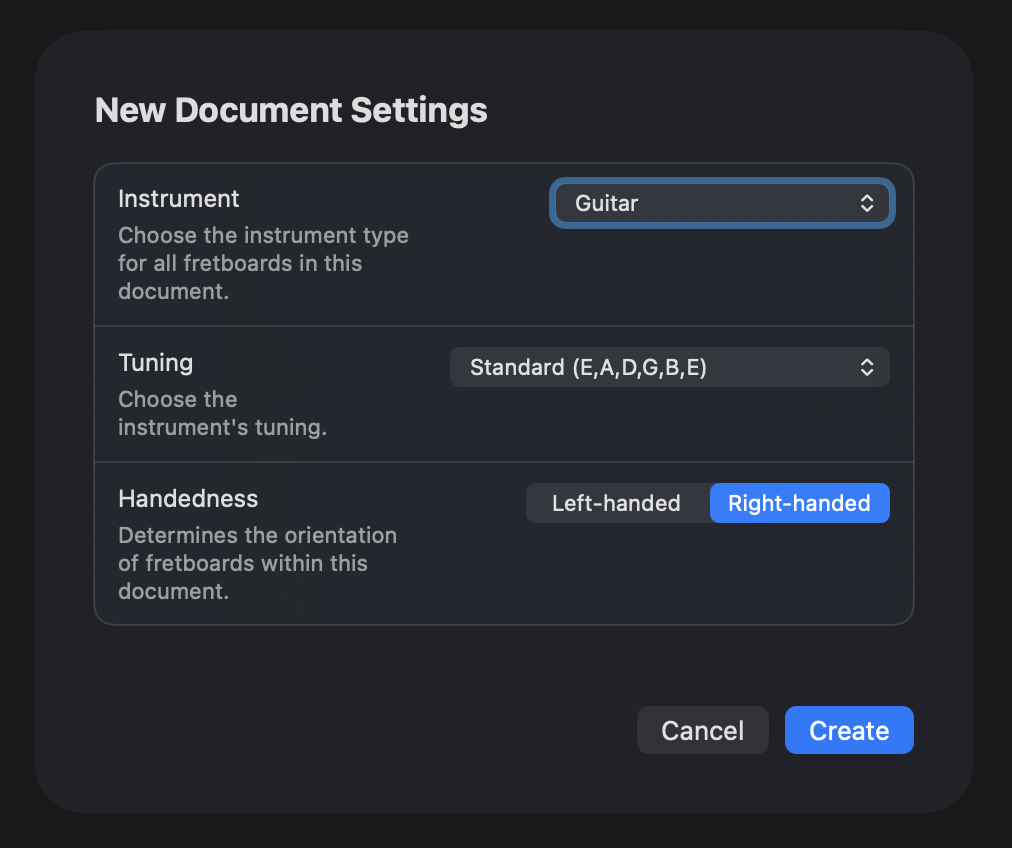
- Select an instrument from:
- Guitar
- Guitar (Seven String)
- Banjo
- Banjo (Four String)
- Bass Guitar
- Bass Guitar (Five String)
- Bass Guitar (Six String)
- Mandolin
- Ukulele
- Select a tuning for that instrument - Frettler comes with multiple instrument-specific tunings. Note that in the free version of Frettler, the choice of tuning is limited to the standard tuning for the selected instrument.
- By default, all fretboards are for right-handed players, with the nut end on the left. Select “Left-handed” in the document’s settings and all its fretboards will display with the nut end on the right.
- The defaulting to right-handed at document creation time can be changed to left-handed in menubar Frettler -> Settings, Documents tab.
The instrument/tuning/handedness selections made when the document is created will determine the appearance and layout of all fretboards created within it, and will be re-applied when the document is reloaded. The selections made are summarised in the top left of the document window.
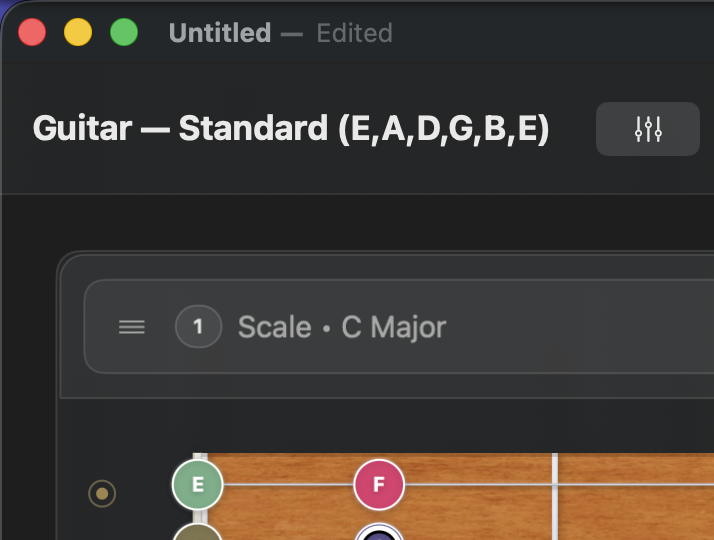
However, you can change any of these choices later using the controls icon to the right of the instrument/tuning title at the top of the document. When you click “Apply”, all fretboards and chord organisers in the document update to match the new settings. For example: start with guitar, standard tuning, right-handed — then switch to a left-handed bass guitar with Drop D tuning, and all panels adjust automatically.
Once you have made that selection and clicked “Apply”, you will be presented with your new but still empty document. Add a fretboard or chord organiser panel using the buttons in the new document welcome page or use the 'Add Panel' button in the top right of the document:

Selecting "Add Chord Organiser" will simply prompt you for the new panels title, whereas "Add Fretboard" will open the fretboard config dialog:
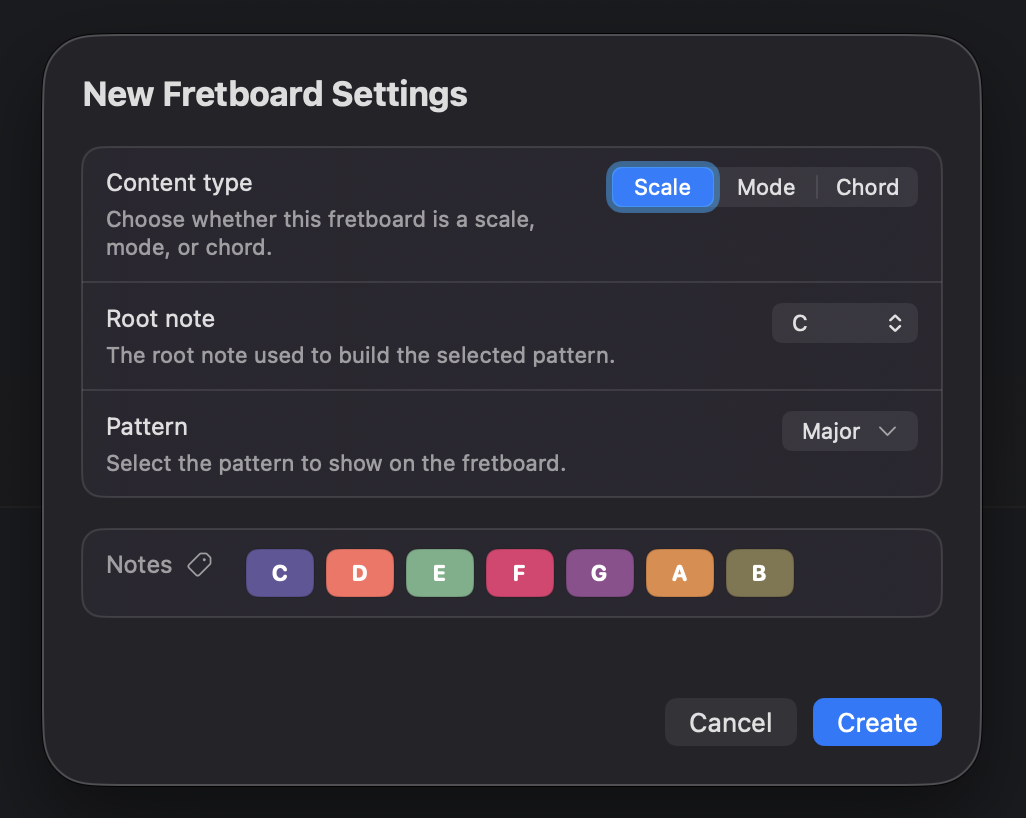
- Select your fretboard's “Content type” from Scale, Mode or Chord.
- Select the root note (P1) for the chosen content type.
- Select the pattern to be used for this fretboard.
For the “Scale” content type, the available patterns are:
- Major
- Minor
- Melodic Minor
- Harmonic Minor
- Hungarian Major
- Hungarian Minor
- Byzantine
- Major Pentatonic
- Minor Pentatonic
- Major Blues
- Minor Blues
- Bebop Major
- Bebop Dominant
- Whole Tone
- Diminished (Half-Whole)
- Diminished (Whole-Half)
- Chromatic (all 12 notes)
For the “Mode” content type, the available patterns are:
- Ionian
- Dorian
- Dorian♭2
- Phrygian
- Phrygian Dominant
- Lydian
- Lydian Dominant
- Lydian Augmented
- Mixolydian
- Mixolydian ♭6
- Aeolian
- Locrian
- Locrian
- Locrian ♯2
- Altered (Super Locrian)
For the “Chord” content type, the available patterns are:
- maj
- m
- dim
- aug
- 5
- sus2
- sus4
- add2
- madd2
- add9
- madd9
- add11
- 6
- m6
- 6/9
- m6/9
- dim6
- aug6
- 7
- maj7
- m7
- m(maj7)
- 7sus4
- 7sus2
- m7b5
- dim7
- 7#5
- 7b5
- maj7#5
- 9
- maj9
- m9
- 9sus4
- 7b9
- 7#9
- m7(add11)
- m11
- 11
- 7#11
- maj7#11
- 7add13
- 13
- maj13
- min13
- 13sus4
- 13b9
- 13#11
Once your fretboard is created, you can others or mix them with chord organiser panels. All the fretboards and chord organisers you create are stored in the current document. Open it tomorrow and they’ll still be there waiting for you.
Create a document for individual instruments or tunings, or for multiple lessons or projects for just one. How you organise your documents is entirely up to you!